 FORGE
Forge TV / Playlist setup
First-time setup
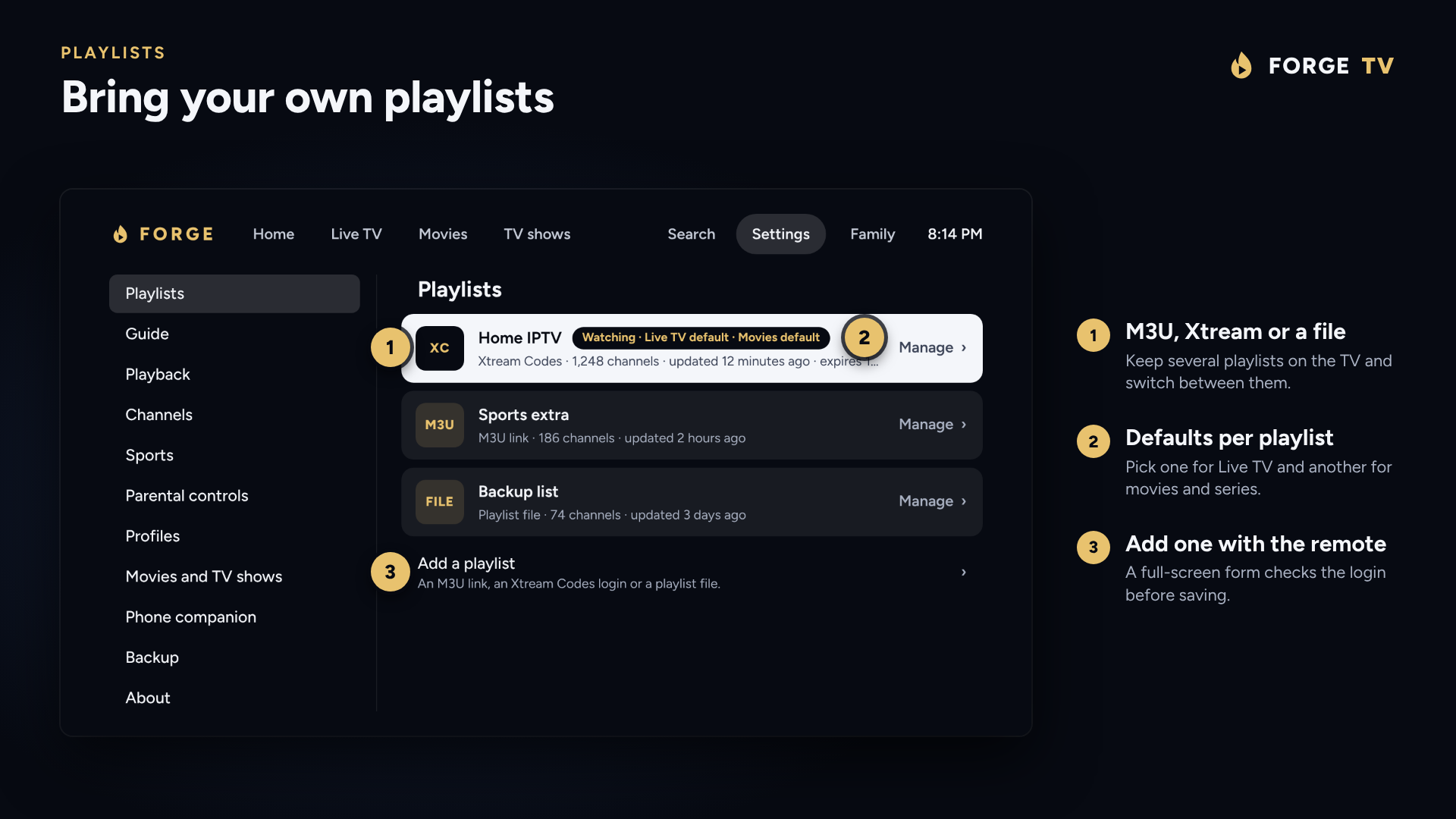
Set up your M3U or Xtream Codes playlist
Forge TV is a player for playlists you already have permission to use. You can add an M3U link, import an M3U file or sign in using Xtream Codes credentials.
Add your playlist
- Install and open Forge TV
Get the APK from the official download page and launch Forge TV on your device.
- Choose the playlist format
Use an M3U URL or M3U file if that's what your provider offers, or Xtream Codes login details if provided.
- Enter your playlist information
Type the details using the TV remote or use the phone companion to send them from your phone's browser, where available.
- Let the channels and guide load
Once imported, open Live TV to see your channels. Electronic programme guide coverage depends on the information your playlist and guide sources provide.
M3U vs Xtream Codes
M3U playlist
Typically a playlist URL or a file containing channel stream entries. Choose this method when you have a valid M3U link or file.
Xtream Codes
Uses connection details and credentials supplied by your service. Enter those in the Xtream Codes playlist setup option.
If channels do not start or keep stopping
Open Settings → Playlists, choose the affected playlist, and try switching its Live stream type to HLS. Forge TV allows playback type to be configured per playlist. Stream availability and quality still depend on the source, device and network.
If guide times look wrong
The guide has settings for its display and time offset. Open Settings → Guide to adjust them and confirm that your playlist provides suitable listings.
Moving to another TV?
Use Settings → Backup to save your setup, preferences and playlists to a file, then restore it on the other device. Store the backup securely because it can contain playlist credentials.
Explore remote controlsRead common questions